
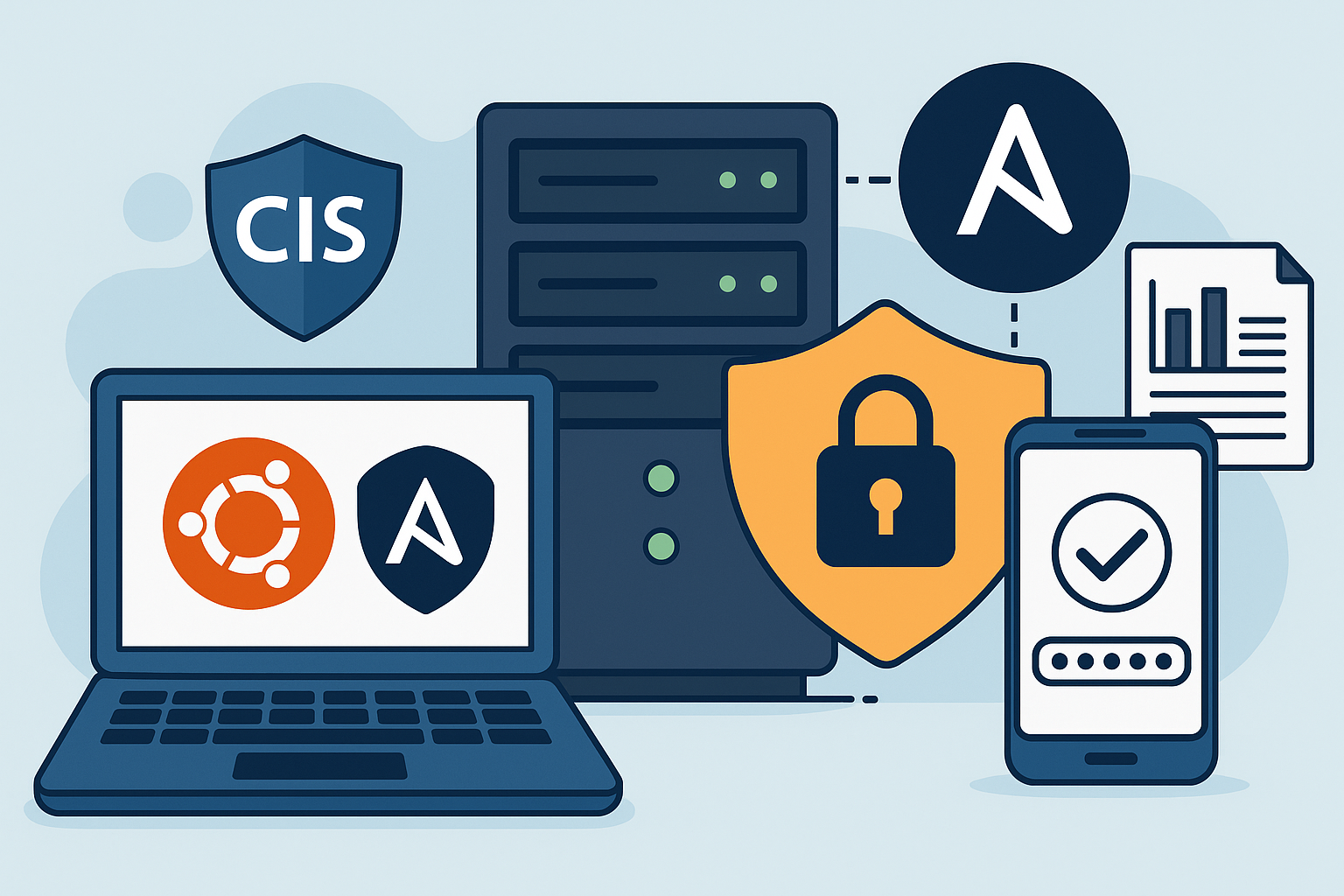
Securing your VPS infrastructure according to industry standards is crucial for maintaining robust cybersecurity posture. The Center for Internet Security (CIS) provides comprehensive benchmarks that help organizations implement proven security configurations. This tutorial demonstrates how to automate Ubuntu 24.04 LTS CIS hardening using Ansible, implement SSH multi-factor authentication, configure advanced firewall rules, and establish compliance reporting.
Whether you’re running production workloads on Onidel VPS in Amsterdam or Onidel VPS in New York, following CIS benchmarks ensures your infrastructure meets enterprise security standards and regulatory compliance requirements.
What You Will Learn
- Automate CIS benchmark implementation using Ansible playbooks
- Configure SSH multi-factor authentication with TOTP
- Set up advanced firewall rules with nftables and UFW
- Implement comprehensive audit logging with auditd
- Generate compliance reports and monitor security posture
Prerequisites
Before starting this tutorial, ensure you have:
- Ubuntu 24.04 LTS VPS with at least 2GB RAM and 20GB storage
- Root access or sudo privileges
- Ansible 8.0+ installed on your control machine
- Basic knowledge of Linux administration and YAML
- Mobile authenticator app (Google Authenticator, Authy)
Warning: CIS hardening involves significant system changes. Test these procedures in a development environment before applying to production systems.
Step 1: Initial System Preparation
Start by updating your Ubuntu 24.04 LTS system and installing essential packages:
# Update system packages
sudo apt update && sudo apt upgrade -y

# Install required packages
sudo apt install -y python3-pip git curl wget unattended-upgrades

# Install Ansible (if not already installed)
pip3 install ansible==8.5.0

# Verify Ansible installation
ansible --version
Step 2: Download CIS Ansible Playbook
Clone the community-maintained CIS hardening playbook:
# Clone the CIS hardening repository
git clone https://github.com/ansible-lockdown/UBUNTU24-CIS.git
cd UBUNTU24-CIS

# Create custom configuration
cp defaults/main.yml custom-config.yml
Edit the configuration file to customize hardening levels:
# custom-config.yml
ubuntu2404cis_level_1: true
ubuntu2404cis_level_2: true
ubuntu2404cis_enable_ssh_mfa: true
ubuntu2404cis_enable_auditd: true
ubuntu2404cis_configure_firewall: true

# Skip potentially disruptive rules
ubuntu2404cis_skip_reboot: false
ubuntu2404cis_skip_service_restart: false
Step 3: Configure SSH Multi-Factor Authentication
Implement TOTP-based MFA for SSH access:
# Install Google Authenticator PAM module
sudo apt install -y libpam-google-authenticator

# Configure PAM for SSH
sudo cp /etc/pam.d/sshd /etc/pam.d/sshd.backup
echo "auth required pam_google_authenticator.so" | sudo tee -a /etc/pam.d/sshd

# Enable challenge-response authentication
sudo sed -i 's/ChallengeResponseAuthentication no/ChallengeResponseAuthentication yes/' /etc/ssh/sshd_config
echo "AuthenticationMethods publickey,keyboard-interactive" | sudo tee -a /etc/ssh/sshd_config
Generate TOTP secrets for each user:
# Run as the target user
google-authenticator -t -d -f -r 3 -R 30 -W

# Follow prompts and scan QR code with authenticator app
# Save backup codes securely
Step 4: Implement Advanced Firewall Configuration
Configure both nftables and UFW for layered security:
# Install and configure nftables
sudo apt install -y nftables

# Create nftables configuration
sudo tee /etc/nftables.conf << 'EOF'
#!/usr/sbin/nft -f

flush ruleset

table inet filter {
    chain input {
        type filter hook input priority filter; policy drop;

        # Allow loopback
        iifname "lo" accept

        # Allow established connections
        ct state {established, related} accept

        # Allow SSH with rate limiting
        tcp dport 22 ct state new limit rate 5/minute accept

        # Allow HTTP/HTTPS
        tcp dport {80, 443} accept

        # Drop invalid packets
        ct state invalid drop

        # Log dropped packets
        limit rate 1/minute log prefix "nftables-dropped: "
    }

    chain forward {
        type filter hook forward priority filter; policy drop;
    }

    chain output {
        type filter hook output priority filter; policy accept;
    }
}
EOF
Configure UFW as an additional layer:
# Configure UFW
sudo ufw --force reset
sudo ufw default deny incoming
sudo ufw default allow outgoing

# Allow SSH with rate limiting
sudo ufw limit 22/tcp

# Allow web traffic
sudo ufw allow 80/tcp
sudo ufw allow 443/tcp

# Enable UFW
sudo ufw --force enable
Step 5: Configure Comprehensive Audit Logging
Set up auditd for security event monitoring:
# Install auditd
sudo apt install -y auditd audispd-plugins

# Create comprehensive audit rules
sudo tee /etc/audit/rules.d/cis.rules << 'EOF'
# CIS Benchmark Audit Rules

# Record events that modify date and time
-a always,exit -F arch=b64 -S adjtimex -S settimeofday -k time-change
-a always,exit -F arch=b64 -S clock_settime -k time-change
-w /etc/localtime -p wa -k time-change

# Record events that modify user/group information
-w /etc/group -p wa -k identity
-w /etc/passwd -p wa -k identity
-w /etc/gshadow -p wa -k identity
-w /etc/shadow -p wa -k identity

# Record events that modify network environment
-a always,exit -F arch=b64 -S sethostname -S setdomainname -k system-locale
-w /etc/issue -p wa -k system-locale
-w /etc/issue.net -p wa -k system-locale
-w /etc/hosts -p wa -k system-locale
-w /etc/sysconfig/network -p wa -k system-locale

# Record login and logout events
-w /var/log/faillog -p wa -k logins
-w /var/log/lastlog -p wa -k logins
-w /var/log/tallylog -p wa -k logins

# Record file system mounts
-a always,exit -F arch=b64 -S mount -k mounts

# Record file deletion events
-a always,exit -F arch=b64 -S unlink -S unlinkat -S rename -S renameat -k delete

# Record changes to system administration scope
-w /etc/sudoers -p wa -k scope
-w /etc/sudoers.d/ -p wa -k scope
EOF

# Restart auditd
sudo systemctl enable auditd
sudo systemctl restart auditd
Step 6: Run Ansible CIS Hardening
Execute the CIS hardening playbook:
# Create inventory file
echo "[targets]
localhost ansible_connection=local" > inventory.ini

# Run the CIS hardening playbook
ansible-playbook -i inventory.ini site.yml -e @custom-config.yml --become

# Monitor progress and address any failures
Step 7: Generate Compliance Reports
Create scripts to generate compliance reports:
# Install compliance scanning tools
sudo apt install -y aide

# Create compliance check script
sudo tee /usr/local/bin/cis-compliance-check.sh << 'EOF'
#!/bin/bash

echo "=== CIS Ubuntu 24.04 Compliance Report ==="
echo "Generated: $(date)"
echo

# Check SSH configuration
echo "SSH Configuration:"
grep -E "(Protocol|PermitRootLogin|PasswordAuthentication)" /etc/ssh/sshd_config
echo

# Check firewall status
echo "Firewall Status:"
ufw status verbose
echo

# Check audit daemon
echo "Audit Daemon Status:"
systemctl is-active auditd
echo

# Check failed login attempts
echo "Recent Failed Logins:"
lastb | head -10
echo

# Check system updates
echo "Available Updates:"
apt list --upgradable 2>/dev/null | wc -l
echo " packages can be updated"
EOF

sudo chmod +x /usr/local/bin/cis-compliance-check.sh
Best Practices and Security Considerations
Ongoing Monitoring
- Schedule regular compliance scans using cron jobs
- Monitor audit logs for suspicious activities
- Implement log rotation to prevent disk space issues
- Set up alerting for critical security events
Backup and Recovery
- Create system snapshots before hardening
- Document configuration changes for rollback procedures
- Test disaster recovery scenarios regularly
- Implement automated encrypted backups to object storage
Performance Optimization
CIS hardening may impact system performance. Monitor key metrics:
# Monitor system performance
sar -u 1 10  # CPU usage
sar -r 1 10  # Memory usage
sar -d 1 10  # Disk I/O

# Check audit log performance impact
auditctl -s
Conclusion
Implementing CIS benchmarks on your Ubuntu 24.04 LTS VPS provides a robust security foundation that meets industry standards and regulatory requirements. This automated approach using Ansible ensures consistent hardening across your infrastructure while maintaining operational efficiency.
The combination of SSH multi-factor authentication, advanced firewall configurations, comprehensive audit logging, and automated compliance reporting creates multiple layers of security that protect your valuable data and applications.
Ready to deploy secure, hardened VPS infrastructure? Explore our high-performance Amsterdam VPS and New York VPS solutions powered by AMD EPYC processors, featuring NVMe storage with triple replication and advanced security features including AMD-SEV encryption.